 Dawnova
How to block Reels, Shorts and Status
Keep Instagram for messages, YouTube for videos you chose, and WhatsApp for chats, without the endless short videos.
Short videos & Status is part of Dawnova Pro. Compare Free and Pro.
What it does
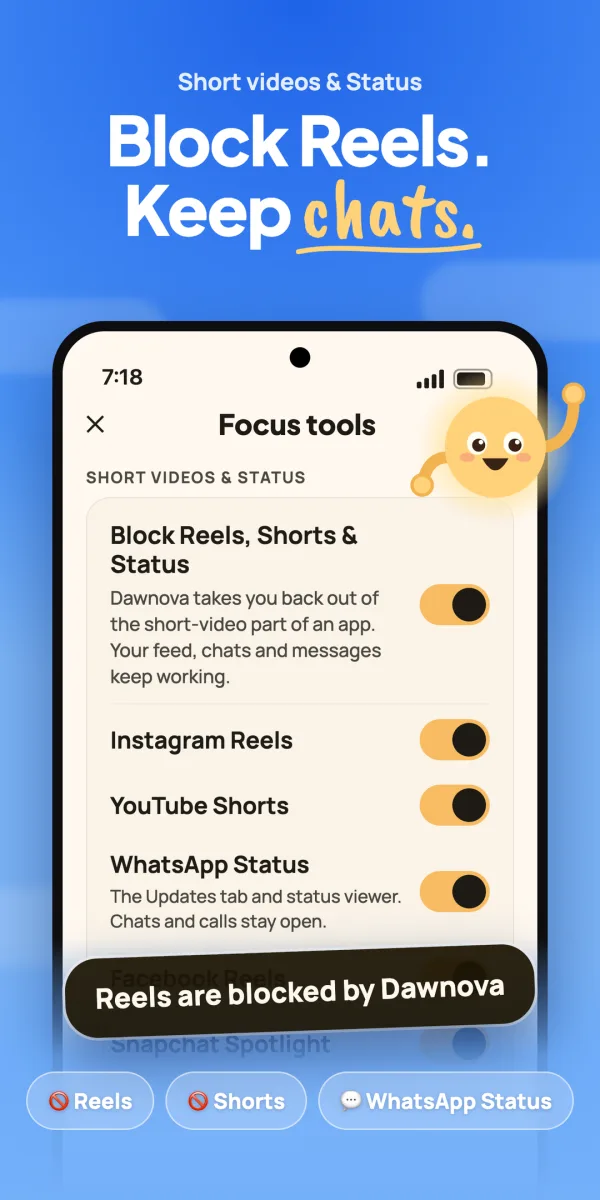
When you open one of these sections, Dawnova takes you straight back out of it and shows a short message, like “Reels are blocked by Dawnova”. The rest of the app keeps working: your feed, chats, messages, calls and Stories.
| App | What’s blocked | What still works |
|---|---|---|
| Reels | Feed, Stories, messages | |
| YouTube | Shorts | Regular videos, search, subscriptions |
| WhatsApp and WhatsApp Business | Status (the Updates tab and status viewer) | Chats and calls |
| Reels | Feed, groups, Marketplace | |
| Snapchat | Spotlight | Chats, camera, Stories |
It’s on all the time while the switch is on, not just during a block. TikTok is all short videos, so block the whole app instead: see Choose apps to block.
How to turn it on
- Open Dawnova and go to Today → Quick Block → Limits & more.
- Under Short videos & Status, turn on Block Reels, Shorts & Status.
- Leave on the apps you want, or turn single apps off: Instagram Reels, YouTube Shorts, WhatsApp Status, Facebook Reels, Snapchat Spotlight.
- If Dawnova asks for Accessibility access, tap Continue, read what it’s used for, tap Open settings and turn on Dawnova.
What Dawnova looks at
To spot these sections, Dawnova’s Accessibility service checks the screen of Instagram, YouTube, WhatsApp, Facebook and Snapchat, only to recognise Reels, Shorts, Status or Spotlight. It doesn’t collect, store or share what’s on your screen, your messages or anything you type. Everything stays on your phone. More in Your data and privacy.
Good to know
- App updates: Instagram, YouTube and the others change their screens from time to time. A section can slip through for a while after an update until Dawnova catches up. Keep Dawnova updated.
- Videos opened from a chat: if you open a Reel someone sent you, Dawnova takes you back to the chat.
- iPhone: Apple doesn’t let any app block only part of another app. On iPhone, block the whole app or give it a daily limit. See What iPhone allows.
- Turning it off: switch off Block Reels, Shorts & Status, or a single app, and it stops right away.
If it isn’t working
- Check that Accessibility is still on for Dawnova: see Blocking stopped working on Android.
- Make sure the app’s switch is on in Short videos & Status.
- Still getting through? Tell us the app and its version at [email protected].
Still stuck?
Contact support