If you’re wondering how to make your phone less addictive, set up a “dumbphone mode”: switch the screen to grayscale, cut notifications to the people and tools that need you, shrink the home screen to one page of essentials, and block everything else during the hours you lose most. You keep maps, banking, the camera and messages. You lose the pull.
Key takeaways
- Dumbphone mode keeps a smartphone’s tools and strips out color, alerts and one-tap feeds.
- College students who switched their screens to grayscale used their phones less, according to a 2020 study in The Social Science Journal.
- A randomized trial that combined nudges like greyscale and disabling non-essential notifications reduced problematic phone use and screen time against a control group.
- Batching notifications three times a day worked better than both normal alerts and no alerts at all.
- An allowlist, where everything is blocked except a few apps you choose, is the closest a smartphone gets to a dumbphone.
In this guide
What makes a phone so addictive?
A phone feels addictive because three design features work together: color and motion that catch the eye, notifications that pull you back in, and feeds that never run out. Each one is a cue. In a 2016 experiment with 221 students, people reported more inattention and hyperactivity in the week their alerts were on than in the week they were off (Kushlev, Proulx and Dunn).
The fourth ingredient is access. Social apps sit one tap from the lock screen, so the gap between a passing urge and an open feed is under a second. So the answer to how to make your phone less addictive is widening that gap and removing the cues, without throwing away the tools you rely on.
| What pulls you in | Dumbphone mode fix |
|---|---|
| Bright colors, red badges, autoplay | Grayscale and badges off |
| Notifications | People and essentials only; the rest batched or off |
| Endless feeds | Feeds off the home screen, blocked at set times |
| One-tap access | An allowlist that blocks everything else |
What is dumbphone mode?
Dumbphone mode is a smartphone set up to behave like a basic phone: calls, texts, maps, camera, music, banking and two-factor codes still work, while feeds, games and most alerts are hidden or blocked. It’s a set of settings, not a new device, so you can turn it on for the evening or keep it all week.
People switch to an actual dumbphone and often come back because they miss maps, mobile boarding passes or bank apps. Dumbphone mode avoids that trade. You keep every tool and change how the phone looks and what it lets through.
How do you set up dumbphone mode on iPhone?
On iPhone, dumbphone mode takes four settings: a grayscale color filter, a cleaned-up notification list, a one-page home screen, and Screen Time’s Always Allowed list for the apps that stay open. These paths are for iOS 27; on older versions the names are the same or close.
- Grayscale: Settings > Accessibility > Display & Text Size > Color Filters. Turn on Color Filters and choose Grayscale. Apple’s guide to display colors covers the options. To toggle it fast, set Settings > Accessibility > Accessibility Shortcut to Color Filters, then triple-click the side button.
- Notifications: Settings > Notifications, tap each app below Notification Style, and turn off Allow Notifications for anything that isn’t a person or a tool. Turn off Badges for the apps you keep. Move email and news to Scheduled Summary (Settings > Notifications > Scheduled Summary), as Apple describes here.
- Home screen: Keep one page with the tools you use on purpose. Long-press a social app, tap Remove App, then Remove from the Today tab Screen; it stays in the App Library if you search for it.
- Always Allowed: Settings > Screen Time > Always Allowed. List the apps that should work no matter what, like Phone, Messages, Maps and your bank. Then a Screen Time Schedule can restrict the rest during set hours.
If your hardest hour is in bed, use our guide on how to stop using your phone before bed alongside this setup.
How do you set up dumbphone mode on Android?
On Android, dumbphone mode uses the grayscale color correction setting, Digital Wellbeing’s Bedtime mode and Focus mode, and a notification cleanup. Paths below are from Google’s Pixel help pages; Samsung and other phones use similar names, and the Settings search box finds each one.
- Grayscale all day: Settings > Accessibility > Color & motion > Color correction. Turn on Use color correction and choose Grayscale, per Google’s accessibility help.
- Grayscale at night: Settings > Digital Wellbeing > Bedtime mode. Set a schedule and turn on Grayscale under the screen options, as Google’s Digital Wellbeing guide explains.
- Pause distracting apps: Settings > Digital Wellbeing > Focus mode. Choose the apps to pause, then turn it on or set a schedule. Paused apps can’t open and don’t send notifications.
- Notifications: Settings > Notifications > App notifications. Turn off every app that isn’t a person or a tool.
- Home screen: Remove feed apps from the home screen (long-press, then Remove) so they live only in the app drawer.
Which notifications should you keep?
Keep notifications from people and from tools that need you at a specific time; batch or switch off everything else. In a randomized field experiment, people whose notifications arrived in three batches a day felt more attentive, productive and in control than people with normal alerts, while people with no notifications reported more anxiety (Fitz and colleagues, 2019).
| Keep on | Batch into a summary | Turn off |
|---|---|---|
| Calls and texts from people | Social likes, follows and “you might like” | |
| Calendar and reminders | News | Shopping and promotions |
| Two-factor codes, bank alerts | Group chats you don’t need live | Games and streaks |
| Rides, deliveries, travel | Work tools after hours | Video and streaming suggestions |
A quick test for each app: would you be upset to miss this alert for three hours? If not, it belongs in a summary or nowhere.
Does grayscale actually work?
Yes, grayscale cuts phone use for many people. A 2020 study of college students found that switching the screen to grayscale reduced daily screen time (Holte and Ferraro, The Social Science Journal). Color is a big part of what makes icons, thumbnails and badges catch your eye, and grayscale turns them flat.
Grayscale works best as one piece of a bundle. A randomized controlled trial by Olson and colleagues (2022) let participants pick from ten nudges, including greyscale and disabling non-essential notifications. Compared with a control group that only tracked screen time, the group using the nudges cut problematic phone use and screen time and reported better sleep quality.
Why it sticks. Dumbphone mode doesn’t ask you to resist anything. It changes what you see when you pick up the phone, so the urge has less to grab onto. Pair it with a block for your weakest hours and the phone does the remembering for you.
How do you make dumbphone mode stick?
Dumbphone mode sticks when switching it off takes more effort than living with it. Built-in settings are one tap from undone, so the strongest setups add a block you don’t control in the moment: an allowlist during set hours, a timed block, or an unlock that needs a real action.
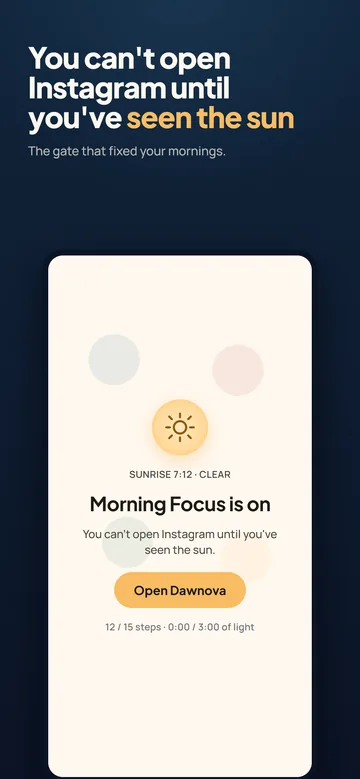
Dawnova (our app) adds the parts the built-in settings leave to you:
- Allowlist mode. Choose “Everything except…” and every app is blocked during your blocks except the ones you keep, like Maps, Messages or your bank. That’s dumbphone mode on a schedule. See how to set up the allowlist.
- Quick Block. Lock your chosen apps right now for 15 minutes up to 2 hours. It’s free; setup is in the Quick Block guide.
- Morning Focus. Your apps stay blocked each morning until you walk 15 steps and snap a photo of the real sky. Details are in the Morning Focus guide.
- Hidden alerts on Android. While a block is on, alerts from blocked apps are cleared before they buzz. Calls and texts always come through.
Start with the apps that eat the most time. Choosing which apps to block walks through picking them, and our guide on how to stop doomscrolling covers the habits around the settings. Plans and pricing are on the Dawnova home page.
Frequently asked questions
How do I make my iPhone boring?
Turn on grayscale at Settings > Accessibility > Display & Text Size > Color Filters, switch off badges and non-essential notifications in Settings > Notifications, and keep one home screen page with tools only. Move social apps to the App Library. A boring phone still works; it just stops competing for your attention.
Is there a dumbphone mode on Android?
Android has no single switch called dumbphone mode, but the pieces are built in. Grayscale lives in Accessibility under Color correction, Digital Wellbeing’s Focus mode pauses chosen apps, and Bedtime mode can turn the screen grey at night. Add a notification cleanup and a one-page home screen and you have the same effect.
Should I buy a dumbphone instead?
A dumbphone suits some people, but most still need maps, banking, boarding passes and two-factor codes. Dumbphone mode gives you the calm of a basic phone while keeping those tools, and you can switch it on only for the hours you lose most, like the first hour after waking.
Can I switch grayscale off when I need color?
Yes. Grayscale is an accessibility display setting that only changes how colors are shown, so it’s easy to toggle. On iPhone, set the Accessibility Shortcut to Color Filters and triple-click the side button. On Android, turn on the color correction shortcut in the same settings screen. Flip it off for photos or maps, then back on.
What apps should stay on a minimalist phone?
Keep Phone, Messages, Maps, Camera, Calendar, a music or podcast app, your bank and your two-factor app. Everything else should earn its place. A good rule: if you open an app on purpose to do a task, keep it; if you open it out of habit, move it off the home screen or block it.
Sources
- Kushlev K, Proulx J, Dunn EW. “Silence Your Phones”: Smartphone Notifications Increase Inattention and Hyperactivity Symptoms. CHI 2016.
- Holte AJ, Ferraro FR. True colors: Grayscale setting reduces screen time in college students. The Social Science Journal, 2020.
- Olson JA, et al. A Nudge-Based Intervention to Reduce Problematic Smartphone Use: Randomised Controlled Trial. International Journal of Mental Health and Addiction, 2022.
- Fitz N, et al. Batching smartphone notifications can improve well-being. Computers in Human Behavior, 2019.
- Apple Support, Change display colors on iPhone, Change notification settings and Set Screen Time Schedules and Time Allowances (iOS 27).
- Google, Manage how you spend time with Digital Wellbeing and Change text and display settings.
Dawnova is a wellness tool, not a medical device. If phone use is affecting your mood, sleep or work and settings aren’t enough, talk to a doctor or a licensed therapist.
Written by the Dawnova team. We build Dawnova, an app blocker that gets you up and outside each morning, and we run dumbphone mode on our own phones. Settings paths checked against Apple’s iOS 27 guide and Google’s Android help in November 2026. Spotted something out of date? Tell us.