Here’s how to set app limits on iPhone with iOS 27: open Settings, tap Screen Time, then Time Allowances, and set a daily allowance for a category such as Social Media. On iOS 26 and earlier, the same job is Settings > Screen Time > App Limits > Add Limit. On Android, open Settings > Digital Wellbeing > App timers and set a timer next to each app.
Key takeaways
- In iOS 27, Apple’s guide for your own iPhone describes Time Allowances by category and Screen Time Schedules by time of day, in place of App Limits and Downtime.
- On iOS 26 and earlier, App Limits can still target a single app or a whole category.
- Android app timers close the app and dim its icon when time runs out, and reset at midnight.
- On your own phone, any built-in limit can be lifted by the person who set it, so it works as a reminder unless someone else holds the passcode.
- Limits hold best when ending them early takes more than a tap.
In this guide
- How do you set app limits on iPhone in iOS 27?
- How do you set App Limits on iOS 26 and earlier?
- How do you lock app limits with a passcode?
- How do you set app timers on Android?
- What happens when an app limit runs out?
- Why are built-in app limits so easy to ignore?
- How do you set daily limits that hold?
- How much time should you allow?
- FAQ
How do you set app limits on iPhone in iOS 27?
In iOS 27, you set app limits on iPhone with Time Allowances: Settings > Screen Time > Time Allowances. You choose a daily total plus an allowance for each category, such as Entertainment, Games or Social Media. Apple’s iOS 27 guide says apps work until they reach either the category’s allowance or the daily total.
- Open Settings and tap Screen Time. If it’s off, tap Time Allowances, then Turn On App & Website Activity.
- Tap Time Allowances. Drag the top slider to set your total daily allowance.
- Under Time Allowances, tap a category (for example Social Media) and drag its slider to set that category’s allowance.
- To add a category, tap Manage Categories, tap the add button, and select a category. Apple’s family guide notes you can also change which apps belong in a category.
- To make allowances follow your day, turn on Match Screen Time Schedule, then set time windows under Settings > Screen Time > Screen Time Schedule, such as work, dinner and evening.
Apps you need at all times go in Settings > Screen Time > Always Allowed. Apple also notes that if an app declares an associated website, the allowance covers both, so the browser version of a social app counts toward the same time.
How do you set App Limits on iOS 26 and earlier?
On iOS 26 and earlier, go to Settings > Screen Time > App Limits > Add Limit. Pick a category, or open a category and tick a single app, tap Next, set the time, and tap Add. Customize Days lets you set different limits for weekdays and weekends, as Apple’s Screen Time support article describes.
Two toggles matter on these versions. Turn on Block at End of Limit on the limit’s screen so extra time needs the passcode. And set Downtime for the hours you want most apps off entirely, like the last hour before bed.
How do you lock app limits with a passcode?
Lock your limits with a Screen Time passcode: on iOS 27, go to Settings > Screen Time > Passcode & Management > Lock Screen Time Settings and enter a four-digit code twice, per Apple’s passcode guide. Without one, a limit on your own phone can be changed in a few taps.
For a limit that holds against yourself, let a friend or partner type the passcode so you don’t know it. Our guide to how people bypass Screen Time lists every common workaround and the setting that closes each one.
How do you set app timers on Android?
On Android, app limits are called app timers. Open Settings > Digital Wellbeing > App timers, tap Set timer next to the app, choose a time, and confirm. Google’s Digital Wellbeing guide says timers reset at midnight. Many phones label the menu Digital Wellbeing & parental controls.
- Pixel and most Android phones: Settings > Digital Wellbeing (or Digital Wellbeing & parental controls) > App timers > Set timer next to the app > pick a time > OK.
- Samsung Galaxy: Settings > Digital Wellbeing and parental controls > App timers, tap the app, Set timer, choose a time, Done. Samsung’s support page covers model differences.
- Whole-app pause: Digital Wellbeing > Focus mode pauses a group of apps now or on a schedule, and paused apps send no notifications.
Some system apps can’t take a timer. If you can’t find the menu, type “app timer” into the Settings search bar.
What happens when an app limit runs out?
When an Android app timer runs out, the app closes and its icon dims until midnight. On iPhone, Apple says apps in a category stay available until they reach the category’s allowance or your daily total. On both phones, the person who set the limit can lift it: on Android by deleting the timer, on iPhone by changing the allowance or entering the passcode.
| iPhone (iOS 27) | iPhone (iOS 26) | Android | |
|---|---|---|---|
| Name | Time Allowances | App Limits | App timers |
| Path | Settings > Screen Time > Time Allowances | Settings > Screen Time > App Limits | Settings > Digital Wellbeing > App timers |
| Limits by | Category plus a daily total | Category or single app | Single app |
| Time of day rules | Screen Time Schedule | Downtime | Focus mode, Bedtime mode |
| Lifting it early | Change the allowance (passcode if set) | Ignore Limit (passcode if Block at End of Limit is on) | Delete the timer |
Why are built-in app limits so easy to ignore?
Built-in app limits are easy to ignore because the person who hits the limit is usually the person who can lift it. These tools are strongest when someone else holds the controls, as a parent does on a child’s phone. On your own phone, the override is always within reach, and at 11pm it takes one tap to say yes.
Three patterns come up again and again:
- The override is easier than the habit. Ignoring a limit or deleting a timer takes a second. Putting the phone down takes a decision.
- The limit covers the wrong hours. An all-day allowance doesn’t protect the first hour after waking or the last hour before sleep, which is when most autopilot scrolling happens.
- You know the passcode. A code you chose is a code you can type. Our guide to stopping doomscrolling covers the habits that help when the settings alone don’t.
How do you set daily limits that hold?
Daily limits hold when the limit ends for the day and there’s no extend button. Set a budget for the apps that eat your time, and when it’s gone, let them stay closed until tomorrow. Then protect the mornings and evenings separately, since those are the hours a daily total can’t cover.
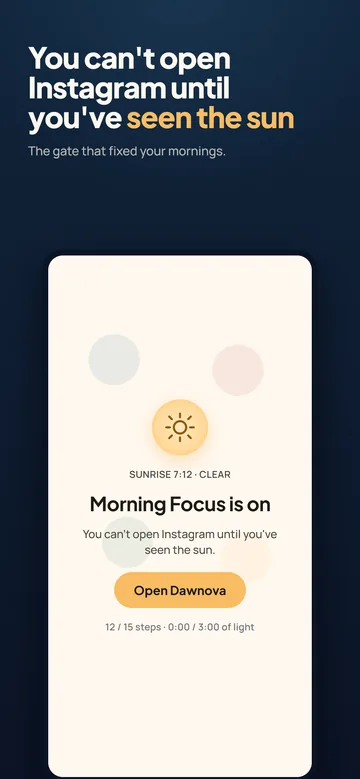
Dawnova (our app) has daily limits that work the same way on iPhone and Android:
- Minutes a day. Give chosen apps a shared allowance from 15 minutes to 2 hours. When it’s used up, they’re blocked until tomorrow.
- Opens a day. Allow 3, 5, 10 or 15 opens instead. On iPhone each open lasts 5 minutes. This suits apps you check in quick bursts.
- Apps and websites. On iPhone you can pick websites too, so the browser isn’t a side door.
- Mornings and evenings on top. Morning Focus keeps your apps blocked until you walk 15 steps and snap a photo of the sky, and Evening Wind-Down pauses them at bedtime until one breathing session.
Not sure where your time goes? Dawnova’s screen-time stats show it on Android and on iPhone with iOS 26.4 or later, and the numbers stay on your phone. Daily limits are part of Dawnova Pro; see plans and pricing.
Why it sticks. A limit that resets tomorrow turns “just five more minutes” into “tomorrow, then.” You set the budget once, while you’re clear-headed, and the evening version of you doesn’t get asked. Add a morning unlock that needs you out of bed, and the two hours that matter most are covered too.
How much time should you allow?
Start from your real number, not an ideal one. Check last week’s daily average for the app, then set the first limit about a third lower. Cut again after a week if it felt easy. A limit you hit every day and respect beats a strict one you override by lunchtime.
| If you… | Try |
|---|---|
| Lose long stretches to one feed | Minutes a day, 30 to 45 to start |
| Check apps dozens of times in short bursts | Opens a day, 10 to start |
| Scroll in bed at night | A bedtime block, not a bigger daily limit |
| Reach for the phone before you’re out of bed | A morning block that ends when you’re up |
For the night side of this, see how to stop using your phone before bed.
Frequently asked questions
Where did App Limits go on iPhone?
In iOS 27, Apple’s guide for your own iPhone describes Time Allowances instead of App Limits. Go to Settings > Screen Time > Time Allowances to set a daily total and an allowance per category. Downtime’s job is handled by Screen Time Schedule, which sets which apps are available at different times of day.
Can you set a time limit on one app on iPhone?
On iOS 26 and earlier, yes: Settings > Screen Time > App Limits > Add Limit, open a category, select only that app, then set the time. On iOS 27, allowances are set per category, and you can manage which apps a category holds. An app blocker with per-app daily limits is the other route.
How do I put a time limit on apps on Android?
Open Settings > Digital Wellbeing (or Digital Wellbeing & parental controls) > App timers, tap Set timer next to the app, pick a time and confirm. When the timer runs out, the app closes and its icon dims. Timers reset at midnight.
Why doesn’t my app limit work?
On iPhone, check that App & Website Activity is on, that the app is in a category with an allowance, and that it isn’t in Always Allowed. Without a Screen Time passcode, you can lift the limit yourself. On Android, check the timer is still listed in Digital Wellbeing; some system apps can’t take one.
Do app limits reset every day?
Yes. Android app timers reset at midnight, and iPhone allowances are daily. Dawnova’s daily limits also reset each day: when your minutes or opens are used up, the apps are blocked until tomorrow.
Sources
- Apple Support, Set Screen Time Schedules and Time Allowances in Screen Time on iPhone (iOS 27).
- Apple Support, Create, change, or remove a Screen Time passcode on iPhone (iOS 27).
- Apple, About Time Allowances (Apple Devices for Kids and Families).
- Apple Support, Use Screen Time on your iPhone or iPad.
- Google, Manage how you spend time on your Android phone with Digital Wellbeing.
- Samsung, Use Digital Wellbeing features on your Galaxy phone or tablet.
Written by the Dawnova team. We build Dawnova, an app blocker that gets you up and outside each morning, with daily limits for the rest of the day. Paths checked against Apple’s iOS 27 user guide and Google’s and Samsung’s help pages in November 2026. Spotted something out of date? Tell us.